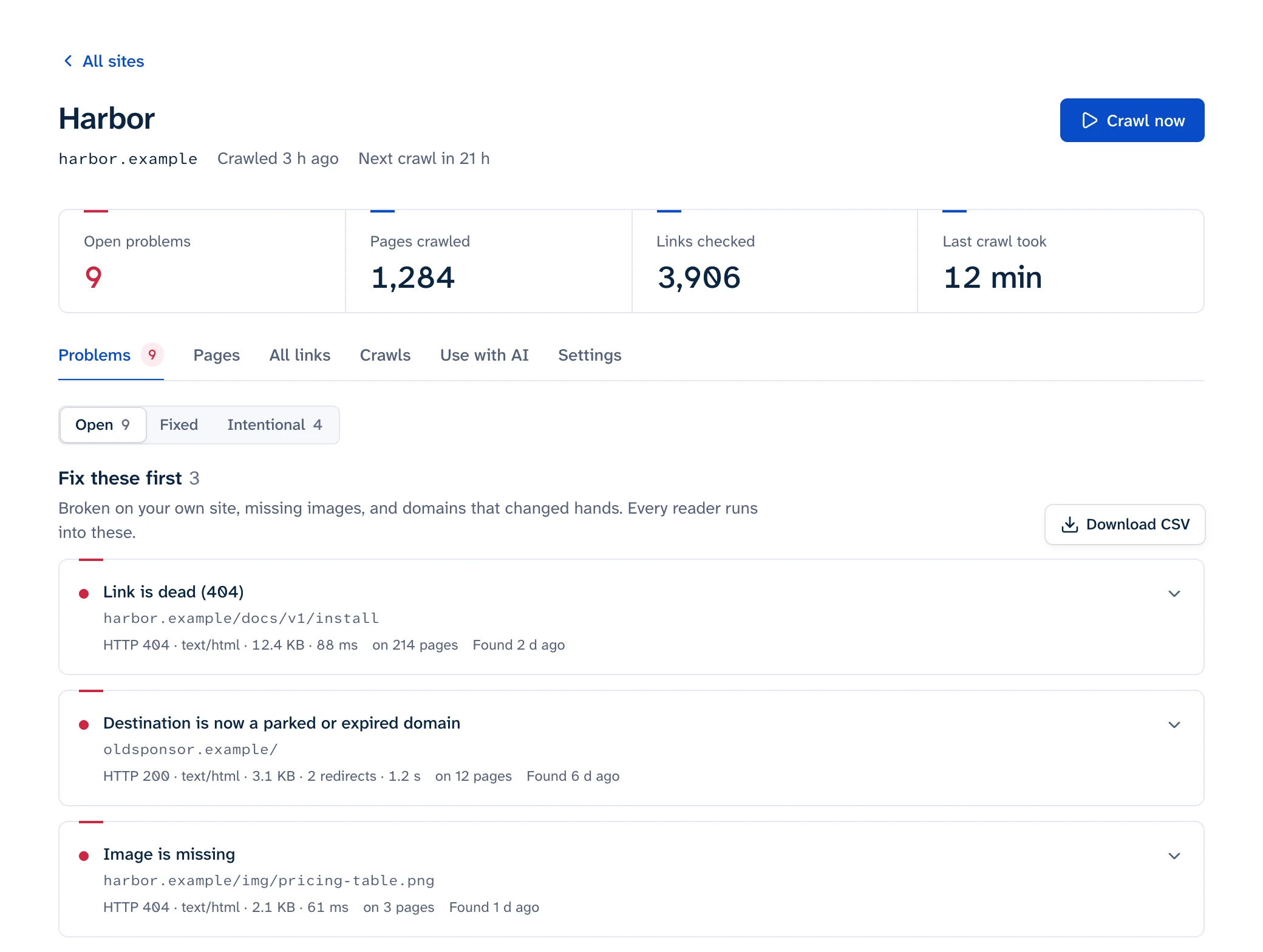
You can find broken links in WordPress three ways: a link checker plugin that scans your content from inside the dashboard, the list of 404s in Google Search Console, or a crawler that reads your published pages from outside, the way a browser does. Plugins are the easiest place to edit a link without opening the post. An outside crawl sees everything your theme prints, including links that were never stored in a post. Search Console only lists URLs Google tried. A setup that works for most sites is a crawl to find problems, then the editor or WP-CLI to fix them.
The options side by side
Limits are as of October 2026, from each vendor's own page.
| Method | Where the checks run | What it reads | Free tier |
|---|---|---|---|
| Broken Link Checker, local engine | Your server | Posts, pages, comments and other database content | Free |
| Broken Link Checker, cloud engine | WPMU DEV's servers | Posts, pages, menus, categories | Free WPMU DEV Hub account "with some restrictions" |
| Broken Link Checker by AIOSEO | AIOSEO's servers | Content, custom fields, menus, synced patterns, templates | 250 internal links a month |
| Google Search Console | URLs Googlebot tried to crawl on your site | Free, no outbound links | |
| Outside crawler | The tool's servers or your computer | The HTML of every page it reaches | Varies; the free scan covers 25 pages |
Broken Link Checker (WPMU DEV)
The plugin most people mean has 500,000+ active installs and a 3.8 out of 5 average on its wordpress.org page. It has two engines and you choose one in its settings.
The local engine "runs directly on your server, no external connection needed". That means every link check is an HTTP request your own server makes, on top of serving visitors. The plugin page sells the cloud engine on "zero server strain", which tells you where the load goes otherwise. If your host meters CPU or PHP workers, use the cloud engine or a tool that runs elsewhere.
The cloud engine checks from WPMU DEV's servers and, per the plugin's FAQ, "requires a connection to WPMU DEV to access its API". You don't need a paid membership. You do need a free Hub account, which the FAQ says comes "with some restrictions" without listing them.
You'll still read that WP Engine bans this plugin. Its disallowed plugins list (updated July 28, 2025) doesn't include any Broken Link Checker. The same page does recommend checking links with tools that aren't plugins: "As they are not plugins these will not have a negative effect on your site's performance."
Broken Link Checker by AIOSEO
This is a separate plugin with a confusingly similar name: 300,000+ installs, also 3.8 stars (wordpress.org). Scanning runs on AIOSEO's servers, so it needs an AIOSEO account, and the free plan "scans up to 250 internal links every month". Its FAQ lists more than post content: custom fields including ACF, navigation menus, category and tag descriptions, synced patterns, templates, navigation blocks, and layouts from Elementor, Divi, WPBakery and other builders.
Both plugins do one thing better than any outside tool. You can edit or unlink a broken link from one screen and the change is saved back to the post. If that matters more to you than coverage, keep a plugin. If you're weighing a switch, see alternatives to the Broken Link Checker plugin.
The local engine reads links from the database, so it can't see anything that isn't stored there. A link hard-coded in a classic theme's footer.php, or printed by another plugin's related-posts box or share bar, only exists in the HTML your server sends.
Search Console
In Search Console, open the Pages report (Indexing > Pages), scroll to "Why pages aren't indexed" and click "Not found (404)". Every URL there is one Googlebot requested and got a 404 for. To see where Google found it, inspect the URL and expand Page indexing. The "Referring page" field is "a page that Google possibly used to discover this URL" (URL Inspection help). That's one page Google may have followed; there can be others.
Search Console never reports your outbound links, and it only knows about URLs Google has tried to crawl, which can lag well behind your edits. Google also says 404s for URLs that shouldn't exist don't hurt your site (Search Console Help), so treat the list as a place to spot real mistakes. The Search Console guide covers the report in detail.
Crawling the site from outside
A crawler requests your pages like a browser and checks every link in the HTML: menus, widgets, header and footer, theme templates, plugin output, <img> and srcset images. It's the only option here that checks exactly what visitors get, and it needs nothing installed on WordPress.
- Start from the home page and add your XML sitemap, so pages that nothing links to are read too.
- Turn on external links and images.
- If a security plugin or Cloudflare's bot protection sits in front of the site, allow the crawler. Otherwise your own pages come back as 403s, which look like broken links and aren't (why checkers get 403 and 429).
- Crawl the live site. Staging often has different content and is often password-protected.
Linkbruno works this way, with no plugin: it reads your pages weekly on the free plan or daily on paid plans, and each problem shows where on the page the link sits (navigation, header, footer, sidebar or main text). That location tells you which WordPress screen to open. It reads HTML as served and doesn't run JavaScript, so a link that only appears after a script runs isn't checked.
Where WordPress keeps links
Once you know which part of the page a broken link is in, this is where you edit it (menu names as of WordPress 7.1, October 2026):
| Where the link sits | Where you edit it |
|---|---|
| Post or page content | The block editor (or classic editor) for that post |
| Menu, classic theme | Appearance > Menus |
| Menu, block theme | Appearance > Editor > Navigation |
| Widget, classic theme | Appearance > Widgets |
| Header, footer or template, block theme | Appearance > Editor > Patterns (template parts) or Templates |
| Header or footer, classic theme | The theme's PHP files, such as footer.php, ideally through a child theme |
| Synced pattern | Appearance > Editor > Patterns; one edit updates every copy |
| Custom field (ACF and similar) | The field box on the post's edit screen |
| Page builder layout | The builder's own editor |
Synced patterns were called reusable blocks until WordPress 6.3 renamed them (WordPress docs). Editing one updates every post that uses it, so a dead link in a synced call-to-action takes one edit however many posts carry it. The Site Editor docs list the Navigation, Patterns and Templates sections.
Fixing broken links
One link at a time
Open the post, click the linked text, edit the URL in the link popover, and update. If the page you linked to moved, link straight to its new address. A redirect would work too, but every visit then costs an extra hop.
Redirects for URLs you changed
WordPress already covers one case. When you change the slug of a published post, it stores the old one as _wp_old_slug and redirects requests for it. It skips hierarchical post types, and pages are hierarchical, so a renamed page simply 404s (wp_old_slug_redirect).
For everything else, use server redirects or the Redirection plugin (2+ million active installs, configured under Tools > Redirection). It can watch for changed permalinks and add redirects for them, log 404s, and migrate an old permalink structure.
Don't install a plugin that redirects every 404 to the home page. Google says sending many old URLs to one irrelevant page "such as the home page" can confuse users and "might be treated as a soft 404 error" (Google, site moves). Redirect each old URL to its closest equivalent and let the rest return 404. More in soft 404s.
Many links at once with WP-CLI
When the same dead URL sits in hundreds of posts (a partner's old domain, a staging address pasted into content), replace it in the database with wp search-replace. Back up first and do a dry run:
# 1. Back up the database
wp db export before-link-fix.sql

# 2. See what would change, without saving
wp search-replace 'https://old-partner.example/pricing' 'https://partner.example/plans' \
  --skip-columns=guid --report-changed-only --dry-run

# 3. Run it for real
wp search-replace 'https://old-partner.example/pricing' 'https://partner.example/plans' \
  --skip-columns=guid --report-changed-only
- Use WP-CLI, not a SQL
REPLACE(). WP-CLI's docs say the command "intelligently handles PHP serialized data". Serialized values store each string's length, so a raw SQL edit that changes a URL's length corrupts them. - Search for the full URL with its scheme. Searching for
/shopalso matches/shoppingand/shop-old. --skip-columns=guidcopies WP-CLI's own example; leave the guid column alone.- Some page builders keep layouts in their own format in post meta (Elementor does). For Elementor content, use
wp elementor replace-urls <old> <new>as well. - Links in theme PHP files aren't in the database. Edit the file.
- Clear your page cache and CDN cache afterwards, then re-check the link.
What breaks many links at once
Changing the permalink structure
A change under Settings > Permalinks moves every post at once. WordPress does try to rescue some 404s: redirect_guess_404_permalink looks for a post whose slug starts with the slug in the requested URL. That's a guess. It only runs when the old URL still yields a post slug, and when several posts match, which one wins isn't defined. Add real redirects (Redirection's permalink migration does this) and crawl the site afterwards.
Deleting media
"Delete permanently" in the Media Library removes the file, and every post that embedded it now shows a broken image. The library's "Uploaded to" column only shows the first post a file was attached to (Media Library docs), so it can't tell you everywhere the file is used. A crawl with images turned on can. See finding broken images.
Moving domains or switching to https
Settings > General changes "WordPress Address (URL)" and "Site Address (URL)", but links already in your content keep the old absolute URLs. Run the WP-CLI replacement above for the old origin, for example 'http://old.example.com' to 'https://example.com', and keep server redirects from the old domain. The same goes for content built on a staging copy: links to staging.example.com work until staging is wiped or locked, then all fail on the same day. The migration redirects guide has the full checklist, and how to find broken links on a website covers the method on any platform.