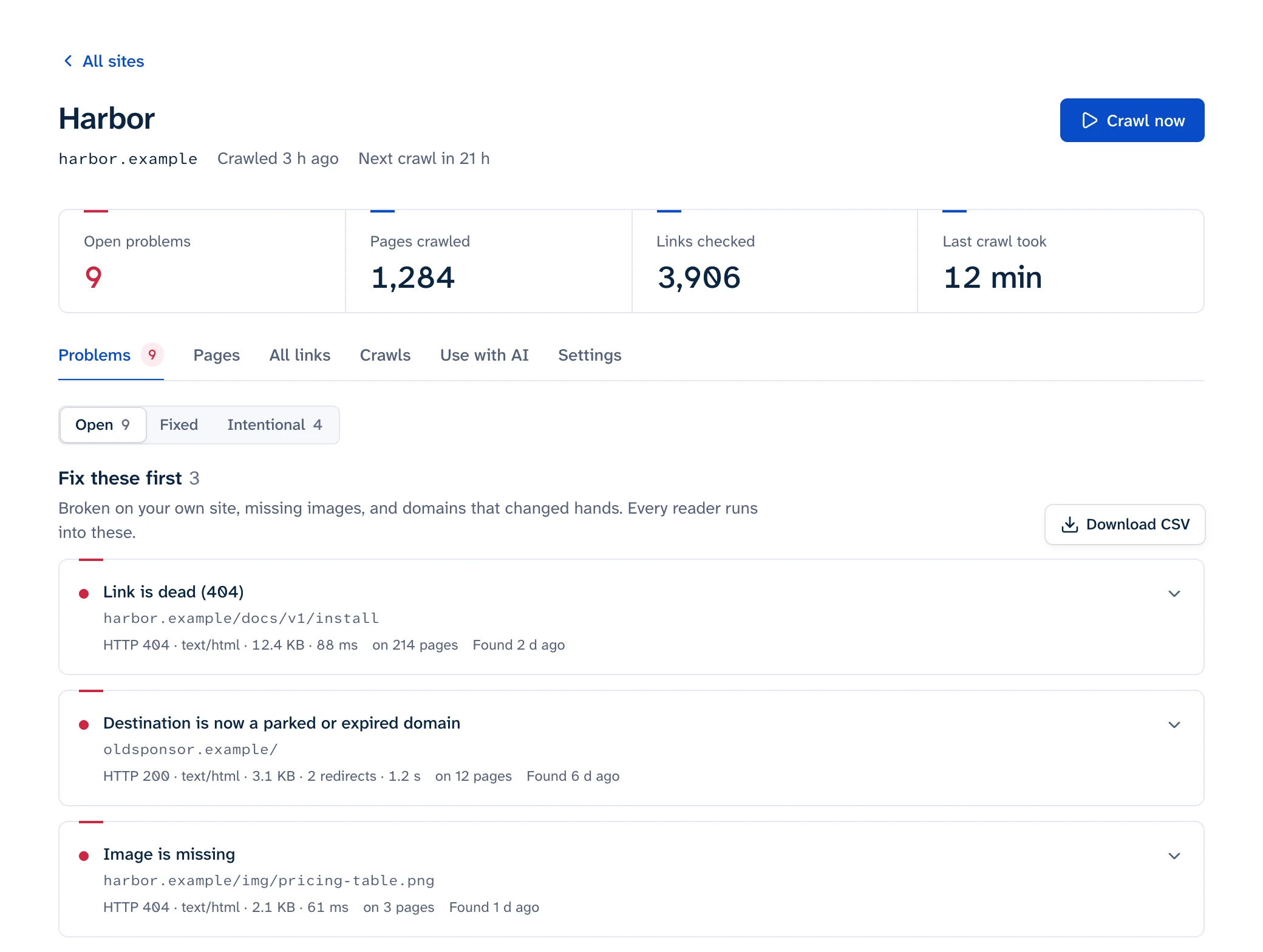
Shopify broken links usually come from a product that was deleted, drafted or given a new handle while links to its old URL stayed in product descriptions, blog posts and theme sections. Menus are the exception: delete a product or collection and Shopify deletes the menu items that pointed at it, so the link disappears instead of breaking. To find the rest, use Search Console's 404 list and a crawl of your storefront. To fix them, edit the link, then add a URL redirect for any old address that people or Google still request.
Admin paths below are from Shopify's help center as of October 2026. Shopify moves things around, so check the linked page if a menu doesn't match.
What breaks a Shopify URL
| What you did | What the old URL does | Notes |
|---|---|---|
| Deleted a product | Returns 404 | Deleted products can't be restored (Shopify Help) |
| Set a product to Draft, or removed it from all sales channels | Returns 404 | Shopify suggests this when you want to redirect a product's URL |
| Archived a product | Hidden from the online store | Customers can't view it |
| Set a product to Unlisted | Keeps working | Reachable only by direct URL; hidden from search, collections and the sitemap |
| Changed a URL handle | Returns 404 unless a redirect was created | See "Changing a handle" below |
| Deleted a collection or page that a menu used | Menu item is deleted too | Links to it anywhere else still 404 |
| Renamed a file in Content > Files | Old file URL stops working | "the previous URL for that file no longer works" (Shopify Help) |
The product statuses come from Shopify's product details help. Unlisted is the one to remember: it takes a product out of collections, search and the sitemap while every existing link to it keeps working.
Where the broken links sit
Theme sections
Depending on your theme, buttons, image banners, slideshows, announcement bars and rich text sections hold URLs that someone typed or picked when the section was set up. You edit them in Online Store, then Edit theme next to your theme (Shopify Help). Shopify notes that "your header and footer are shared across all of your online store's pages", so one dead link in the footer appears on every page and takes one edit to fix.
Descriptions, pages and blog posts
Links typed into the rich text editor are plain addresses. Nothing updates them when the product they point at is renamed or deleted. Blog posts are under Content > Blog posts; pages are under Online Store > Pages.
Menus
Edit them in Content > Menus. Shopify's menu help warns that linking a menu item to a pasted URL "instead of selecting a page directly can disrupt the connection" and lead to a 404. Pick the product, collection or page from the list when it exists in your store.
Finding them
Search Console
In Search Console, open Indexing > Pages and, under "Why pages aren't indexed", click "Not found (404)". To see where Google picked up a dead URL, inspect it and expand Page indexing; "Referring page" shows "a page that Google possibly used to discover this URL" (URL Inspection help). It only covers URLs Googlebot tried, and never your outbound links. More in finding broken links in Search Console.
Crawling a Shopify store without getting throttled
Shopify limits how fast unidentified crawlers can read a storefront. Sitebulb's Shopify guide says "Shopify employs rate-limiting measures", and its crawler stops when the store answers with a 429 (Sitebulb). A 429 means "slow down". It tells you nothing about whether the page exists.
Shopify's answer is a crawler access signature, which tells the store that a crawler is yours (Shopify Help):
- In your Shopify admin, go to Online Store > Preferences.
- In the Crawler access section, click Create signature.
- Give it a name, choose the domain it's for, and pick a period under Valid for. The maximum is 3 months, and a signature can't be renewed or extended, so put a reminder in your calendar to make a new one.
- Click Create, then copy the Signature-Input and Signature values.
- Set your crawler to send three headers with every request:
Signature-Input,Signature, andSignature-Agentwith the value"https://shopify.com", quotes included.
If your tool takes custom headers as raw lines, they look like this (shown as a curl request):
curl -sI https://your-store.example/products/linen-shirt \
  -H 'Signature-Input: <value from Shopify>' \
  -H 'Signature: <value from Shopify>' \
  -H 'Signature-Agent: "https://shopify.com"'
Shopify's troubleshooting note is short: if a signed crawler still gets rate-limiting errors, the signature isn't valid. If your tool can't send custom headers, Sitebulb's advice is to turn the crawl speed down as far as it goes. Linkbruno paces its requests per host and reports a 429 as "blocked, couldn't check", never as broken, so a throttled product page doesn't land on your fix list.
When you read the results, group them by the dead URL. One deleted product linked from a blog post, another product's description and a homepage banner is one problem with three places to fix. For a quick look at a small store, the free scan checks up to 25 pages.
Fixing them with URL redirects
Edit the links you control first, so your own pages point at live URLs. Then add redirects for the old addresses, because you can't edit links on other sites, in old emails or in Google's index.
- From your Shopify admin, go to Content > Menus.
- Click View URL redirects.
- Click Create URL redirect.
- In Redirect from, enter the old path, such as
/products/linen-shirt-blue. - In Redirect to, enter the new path, such as
/products/linen-shirt. - Click Save redirect.
Rules from Shopify's URL redirect help that catch people out:
- "You can redirect only from broken URLs." If the old URL still loads a page, the redirect does nothing. To retire a live product into another one, draft or delete it first.
- You can't redirect the fixed paths
/products,/collectionsand/collections/all, or URLs that begin with/apps,/application,/cart,/carts,/orders,/servicesor/shop. - Use a relative path within your store and a full URL for another domain.
- URLs with query strings "might not work as expected".
- The limit is 100,000 redirects, or 20,000,000 on Plus.
- Browsers cache 301s, so deleting a redirect may not take effect for people who already followed it.
Many redirects at once
For a batch (a discontinued range, a new handle scheme), import a CSV: Content > Menus, URL redirects, Import, Add File, Upload file, review, then Import redirects. Start from the sample CSV linked in Shopify's help article. Click Export first if you want a backup of the redirects you already have. If a whole store is moving to Shopify, checking redirects after a migration covers building and testing the full map.
Changing a handle
When you change the URL handle of a page or blog post in its Search engine listing section, Shopify pre-selects Create a URL redirect, so the old address forwards to the new one (pages, blog posts). For collections you choose whether to create the redirect (collections). Shopify's product help describes editing the handle but doesn't mention the redirect option, so after renaming a product, check View URL redirects and add the redirect yourself if it isn't there. Shopify also advises against editing handles often.
The redirect saves visitors from a 404, but your own links still point at the old handle and now cost an extra hop. Update them after the rename.
Don't send every 404 to the home page
Some apps catch every 404 and redirect it to the home page. Google's site-move guidance says not to redirect many old URLs "to one irrelevant single URL destination, such as the home page", because it "might be treated as a soft 404 error" (Google). A shopper who clicked a link to a specific linen shirt and lands on your home page has to start over.
Redirect each old URL to the closest real equivalent: the replacement product, or the collection it belonged to. When nothing comparable exists, let it 404. Google's help says that for "a deleted page that has no replacement or equivalent", returning a 404 is the right thing to do (Search Console Help). See soft 404s for how to spot pages Google already treats this way.
Sold out, discontinued or gone
| Situation | What to do with the product page |
|---|---|
| Out of stock, coming back | Leave it active; the URL keeps working |
| Discontinued, but people still find it through old links | Set it to Unlisted (it can still be bought from its URL), or delete it and redirect to the replacement |
| Replaced by a new product | Delete or draft it, then redirect the old URL to the new product |
| Gone, nothing comparable | Delete it and let the URL return 404 |
Outbound links in blog posts and descriptions
Links from your store to supplier pages, spec sheets and videos break with no change on your side: a supplier redesigns, a blog you cited closes, a domain lapses and becomes a parked page. Before you delete one, open it in a private window. LinkedIn answers most checkers with a 999 status, and sites behind Cloudflare or other bot protection return 403 or 429 to tools while working fine for people (why checkers get 403 and 429). For links that really are dead, replace them with a current source, link an archived copy, or remove them; the external links guide covers each case. For checking any kind of site, start with how to find broken links on a website.