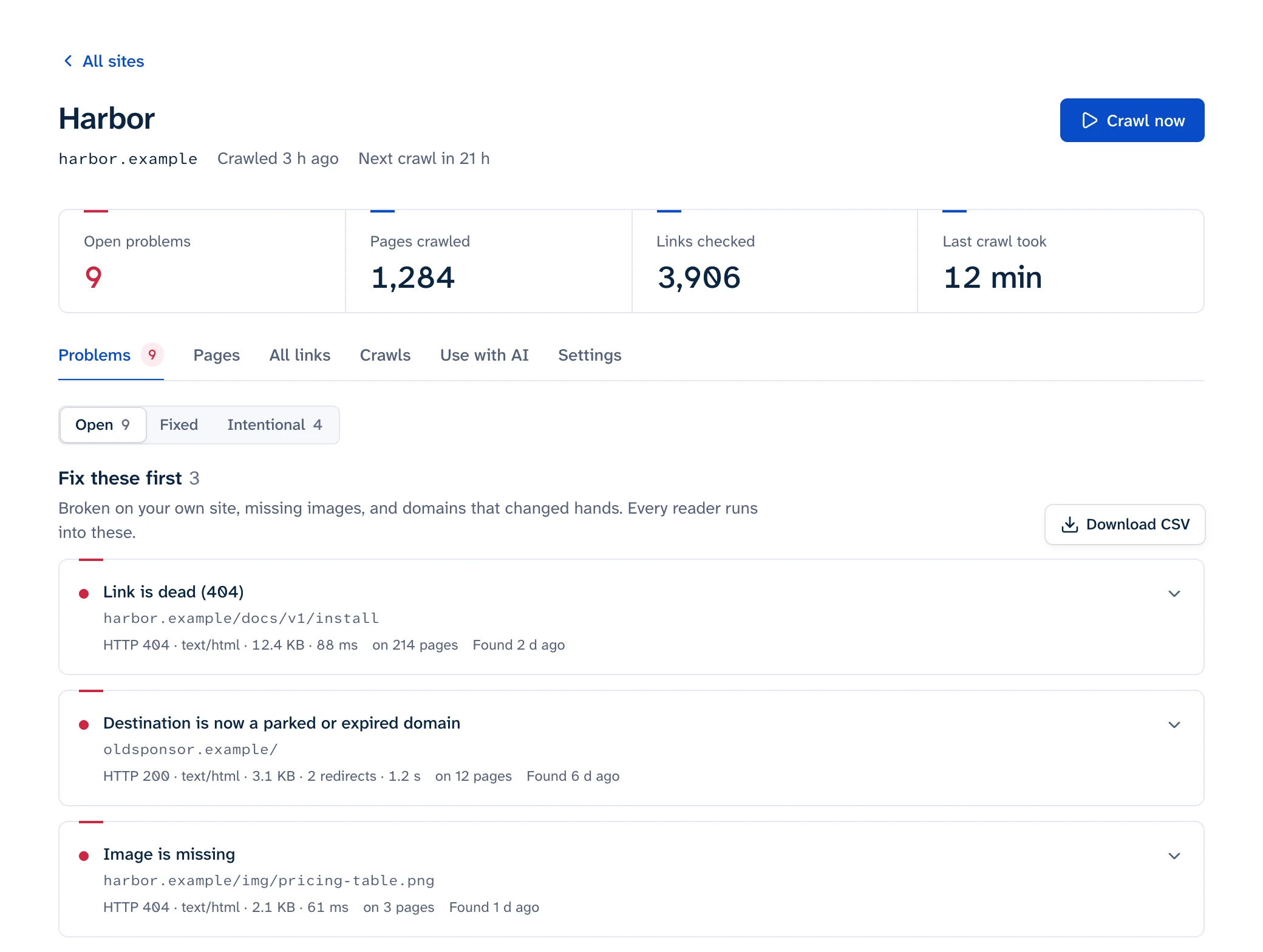
Webflow doesn't check whether your links work. Its Audit panel flags missing alt text, non-descriptive link text, skipped heading levels, duplicate element IDs and missing SEO metadata, but nothing about dead links (Webflow Help). To find broken links on a Webflow site you need Google Search Console for the URLs Google hits, and a crawler for every link on your published pages, including the ones to other sites. Webflow broken links usually come from deleted pages, changed slugs and moved folders, plus addresses typed into CMS rich text, components and code embeds that nothing updates when the target moves.
Menu paths below are from Webflow's help center as of October 2026.
What breaks links in Webflow
| What you did | What happens to the old URL |
|---|---|
| Deleted a static page | 404. No redirect is created; Webflow says to "set 301 redirects for any site pages you delete" (Pages panel) |
| Changed a static page's slug | 404, unless you ticked "Permanently redirect the old URL to this new one" in Page settings |
| Moved a page in or out of a folder | Its URL changes and the old one returns 404 (page folders) |
| Saved a published page as draft | Unpublished at the next site publish and dropped from the sitemap (drafted pages) |
| Changed a Collection URL | Every item page in that Collection moves |
| Changed a CMS item's slug, or archived, drafted or deleted the item | The item page is gone; you add the redirect yourself |
| Changed a slug on a localized site | Redirects don't cover localized paths; /es/old-url needs its own rule |
Timing matters on CMS sites. A deleted Collection item stays live until the next full-site publish, while Unpublish removes it "immediately" (Collection items). So the 404s can appear well after the edit that caused them, whenever someone next publishes.
Where the broken links live
CMS rich text
In a rich text element or CMS rich text field, a link can point at a page picked from a list or at a URL. Writers often paste URLs, and Webflow's Link settings describe that type plainly: "Paste any link in the URL field to send users to that address." That address stays exactly as typed when the page it points at is renamed, moved or deleted.
To fix many at once, export the Collection to CSV, correct the URLs in a spreadsheet, and import the file with "Link and update matching items", which matches rows to existing items by the Item ID column in the export (CMS import and export). Create a backup first; Webflow offers one during the import. Webflow's docs also note that it "may clean up embeds" in rich text on import, so check a few posts with embeds before and after.
Components (navbar, footer)
Components were called Symbols until Webflow renamed them in November 2022 (Webflow updates). A component's main definition drives every instance, and "any changes to the content or design automatically update every instance" (Components). A dead link in the footer component shows up on every page of the site, so a crawl reports it hundreds of times, and you fix it once by editing the main component. Component properties are the exception: if a link is exposed as a prop, each instance can hold a different URL and you edit them one by one.
Custom code embeds
Links inside an Embed element, or in custom code in Page or Site settings, are raw HTML. Webflow doesn't know they're links. A crawler sees them in the published HTML; nothing inside Webflow will.
Links that only exist after JavaScript runs
If a script loads CMS items, filters or navigation after the page arrives, those links aren't in the HTML your server sends. Crawlers that don't run JavaScript won't see them, and Linkbruno is one of those. Check such pages by hand, or with a crawler that renders JavaScript.
Finding them
Search Console
In Search Console, open Indexing > Pages, scroll to "Why pages aren't indexed" and click "Not found (404)". To see where Google found a dead URL, inspect it and expand Page indexing. "Referring page" is "a page that Google possibly used to discover this URL" (URL Inspection help). It only lists URLs Googlebot tried, and never your outbound links. More in finding broken links in Search Console.
A crawl of the published site
Crawl the site on your custom domain after publishing, since that's what visitors and Google get. Turn on external links and images. When you read the report, use where each link sits on the page: a link in the navigation or footer is a component edit, a link in the main text of a blog post is a CMS edit, and a link on one static page is a Designer edit. Linkbruno reports each broken link once, with every page that carries it and where on the page it sits (navigation, header, footer, sidebar or main text). The free scan checks up to 25 pages without signing up.
Adding 301 redirects
Redirects need a paid Site plan, or a site in a Workspace with a paid Workspace plan (redirects help).
- Go to Site settings > Publishing > 301 redirects.
- Enter the old URL in the Old path field, such as
/old-url. - Enter the target in the Redirect to path field, such as
/new-url. - Click Add redirect path.
- Publish the site. Redirects don't take effect until you do. Then paste a few old URLs into the redirect checker to confirm each one lands in one hop.
You can't redirect a page that still exists. For a static page, delete it, save it as a draft or change its slug first. For a Collection item, archive, delete, unpublish or draft it, or change its slug.
Whole folders and Collections
Capture groups move a folder or Collection in one rule. (.*) captures, %1 reuses it:
Old path:          /old-collection-url/(.*)
Redirect to path:  /new-collection-url/%1
Webflow's Manage CMS Collections page recommends exactly this when you rename a Collection URL after publishing. You can use more than one group, as in /blogs/(.*)/(.*) to /articles/%1/%2.
Rules that cause silent failures
- Order: Webflow runs redirects in the order they were added, oldest first. Add specific redirects before broad wildcard ones, or the wildcard catches the URL first. To check the order, sort the list by Date created.
- Special characters in the Old path need a
%in front. For a query string,mysite.com?category=foodis written as%?category%=food. You don't escape anything in the Redirect to path. - A trailing slash right before a query string is stripped before matching. Write
/slug%?param%=value, not/slug/%?param%=value, or the rule never fires. - Count: there's no hard limit, but Webflow recommends 1,000 at most, because every rule goes into the site's
manifest.jsonthat browsers download. Prefer one wildcard over hundreds of single rules.
CSV import overwrites everything
For a migration, you can import redirects from a two-column CSV (old path, new path) at Site settings > Publishing > 301 redirects > Import, up to 16 MB (import and export). An import "removes any existing redirects on your site". Click Export first, add your new rows to that file, then import it. If any row is invalid, the whole import fails and Webflow emails you a link to your file with guidance on fixing the invalid rows. Publish afterwards.
The slug change checkbox
When you change a static page's slug in Page settings, tick "Permanently redirect the old URL to this new one" and Webflow creates the 301 for you, listed under Site settings > Publishing > 301 redirects. The redirect help describes this checkbox for pages only. For CMS items, plan on adding the redirect yourself after changing the slug.
Whichever way the redirect was made, update the links on your own site to the new URL. A typed URL in rich text or a code embed still points at the old slug, and every click costs a redirect hop.
Section IDs and anchor links
An anchor link needs an element ID on the target. Select the section, open the Element settings panel and type a unique ID in the ID field. To link to it on the same page, open the link's Element settings panel > Link settings, click Page section, and pick the ID. To link from another page, choose the URL link type and enter the page URL followed by # and the ID, such as /pricing#plans (Section link).
Cross-page anchor links are typed URLs, so they break quietly:
- Rename the ID, and every
/page#old-idlink still loads the page but stays at the top. Nothing returns an error. - Change the page slug, and the link goes to the old URL. A 301 gets visitors to the page, but fix the link too.
- Give two elements the same ID, and only the first one is the target. The Audit panel flags duplicate element IDs, which makes it the one built-in check that helps here.
If an anchor link lands in the wrong spot, Webflow's own troubleshooting points at images set to lazy load, which change the page height after the browser has calculated where to scroll. Set images above the target to Eager, or put them inside fixed-height elements.
A link checker only catches a missing ID if it compares the #fragment with the IDs on the target page. See broken anchor links for how to test one in the browser console. For the method on any platform, see how to find broken links on a website.