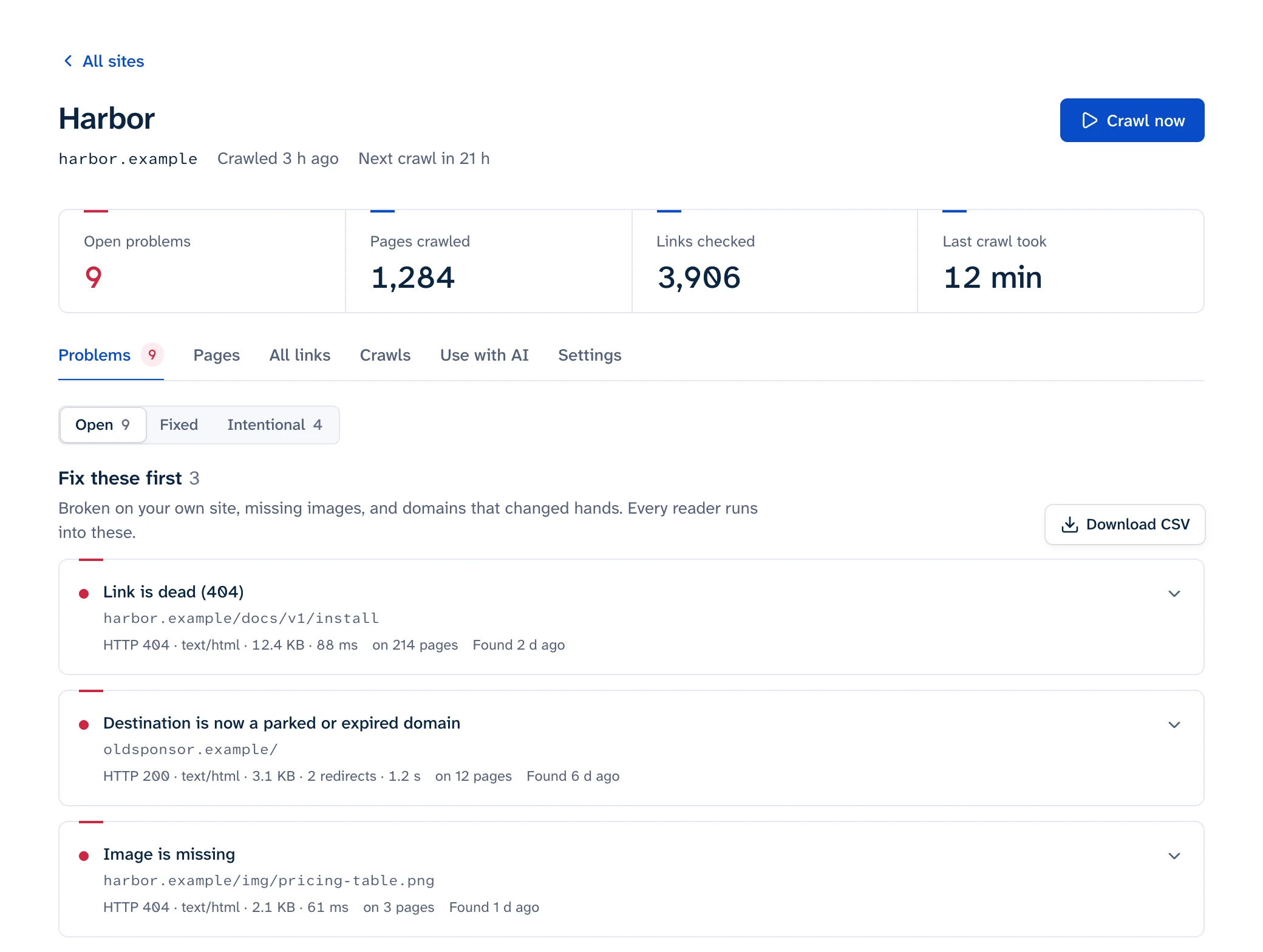
To find broken images on a website, check one page in your browser's DevTools, then crawl the whole site with image checking turned on so every <img src> and every srcset candidate gets requested. Look for more than 404s. An image URL that answers with an HTML page, an http:// image on an https:// page and a hotlinked file that another site deleted all end in the same broken-image icon. Most fixes happen at the source: re-upload the file, correct the path, or host your own copy instead of hotlinking.
Why images break
| Cause | What the image request gets | Usual fix |
|---|---|---|
| File deleted from the media library or server | 404 or 410 | Re-upload it at the same path, or remove the <img> |
| File or folder renamed, upload path changed | 404 | Update the path at the source, or 301 the old file URL to the new one |
| Old CDN or image hostname switched off | DNS failure, timeout, 403 or 404 | Rewrite the URLs to the current host |
| Hotlinked image on someone else's site | 404, 403, or a different picture | Host your own copy if the license allows it, or replace it |
http:// image on an https:// page |
Upgraded to https and fails, or blocked outright | Change the URL to https |
| Image URL now serves an HTML page | 200 with Content-Type: text/html |
Fix the path. A status check alone won't catch it |
| Hotlink protection blocking some of your own pages | 403 in the browser, fine for a checker | Allow every domain your pages run on |
The last three fool simple checkers, so they're worth a closer look.
http images on https pages
Browsers try to upgrade <img src="http://..."> to https on their own. If the image host doesn't serve that file over https, the upgraded request fails and the visitor sees a broken image. Images in srcset or inside <picture> aren't upgraded at all: browsers block them (MDN, Mixed content). That's why the same http:// file can show in one template and vanish in another that uses srcset. The fix is the same either way: write the URL as https, or as a path on your own site.
Image URLs that return a web page
When an image path stops existing, some servers don't answer 404. They send the site's "not found" page with a 200 (a soft 404), redirect to the home page, or redirect to a login screen. The browser can't draw HTML as an image, so the reader gets the broken-image icon, while a checker that only reads status codes sees 200 and moves on. Check the Content-Type header:
curl -sIL https://example.com/uploads/2021/04/team.jpg | grep -iE '^(HTTP|content-type)'
The last content-type line should start with image/. If it says text/html, the file is gone even though the status says 200.
Hotlink protection
Hotlink protection stops other sites from embedding your files, and it usually decides by the Referer header. Cloudflare's version denies requests whose referer doesn't include your website's domain and lets requests with no referer through (Cloudflare docs). If your images sit behind a rule like that and some of your pages run on a different domain (a second storefront, a docs site, a landing-page tool), visitors on those pages get blocked. A link checker that sends no referer gets the image without trouble, so this one only shows up in a real browser on the affected page.
Check one page in DevTools
In Chrome (Firefox and Safari have a similar Network panel):
- Open the page, then open DevTools with F12, or Cmd+Option+I on a Mac.
- Go to the Network panel, tick Disable cache and reload.
- Scroll to the bottom of the page so lazy-loaded images (
loading="lazy") get requested. - Click the Img filter. In the Status column, look for 4xx and 5xx codes and for
(failed), which Chrome shows followed by the error message (Chrome DevTools network reference). Typingstatus-code:404in the filter box narrows it further. - To find image URLs that came back as web pages, switch to All, type
mime-type:text/htmlin the filter box and look for addresses ending in.jpg,.pngor.webp.
The Console gets you there faster. This lists every image on the page that finished loading without producing a picture, which covers 404s, blocked requests and URLs that returned HTML:
[...document.images]
  .filter(img => img.complete && img.naturalWidth === 0 && img.currentSrc)
  .map(img => img.currentSrc)
complete is true for a broken image (MDN), and naturalWidth is 0 when no image data arrived (MDN). Lazy images further down may not have loaded yet, so scroll to the bottom first. The snippet doesn't see CSS background images; the Network panel does.
Without DevTools, the page link checker requests every <img> and srcset candidate on a page, along with its links, and names the ones that don't load. Like the Console snippet, it doesn't see CSS background images.
Check the whole site with a crawl
DevTools covers one page at one screen size. For the rest you need a crawler that requests every image on every page, the same way you'd find broken links across a site. The settings that matter:
- Turn image checking on, for files on your own host and on other hosts (CDNs, hotlinked images).
- Check
srcsetcandidates as well assrc. The browser picks one candidate based on screen size, pixel density and thesizeshint (MDN, responsive images), so a missing large file may only be requested on wide or high-density screens and look fine on yours. In Screaming Frog this is a setting: Configuration > Spider > Advanced > Extract Images From IMG SRCSET Attribute (Screaming Frog configuration guide). - Group results by image URL. A missing logo in the header is one problem on every page, and you fix it once. Sort by how many pages carry each file.
Linkbruno checks <img src>, srcset and <source srcset> by default, reports an image URL that serves HTML as a missing image, and lists every page that uses the file in one row. For a quick look at a small site, the free scan covers up to 25 pages without signing up.
A crawler that reads HTML misses three kinds of image: CSS background-image, images inserted by JavaScript, and lazy-loading scripts that keep the real address in data-src until a script swaps it in. Linkbruno doesn't run JavaScript, so it won't see those. Screaming Frog can, with rendering set to JavaScript under Config > Spider > Rendering (Screaming Frog FAQ), which makes it the better tool for script-heavy templates. Or check those templates by hand in DevTools.
WordPress notes
- In Media > Library, Delete permanently deletes the file (WordPress docs). Posts that embedded it keep their
<img>tags and the old URL. - The Uploaded to column isn't a list of where a file is used. It shows the post the file is attached to, usually the one it was first uploaded to, and only the first if there are several, so other posts that embed the same file don't appear. A file in the Unattached view has no parent post, but it can still be embedded in any number of posts.
- WordPress adds
srcsetto the images it outputs, built from the smaller copies it makes at upload, such asphoto-300x200.jpg(WordPress developer docs). If a cleanup plugin or a migration dropped those copies,srcstill works while thesrcsetcandidates 404.wp media regenerate --only-missingrecreates the missing sizes. Plainwp media regeneratedeletes the existing thumbnails unless you add--skip-delete(WP-CLI docs), so if your image sizes changed since upload, posts that reference an old size by file name break. - After a domain or https move, post content still holds the old absolute image URLs. Back up the database, run
wp search-replace 'http://old.example.com' 'https://example.com' --skip-columns=guid --dry-run, read the report, then run it again without--dry-run(WP-CLI docs).
The WordPress guide covers the rest of the places links live in WordPress.
Shopify notes
Files you upload under Content > Files get their own CDN address, and Shopify's help describes two ways that address changes. When you replace a file, "the file name stays the same, but the file's link changes". When you change a file's URL, "the previous URL for that file no longer works" (Shopify Help Center). Anywhere you pasted the old link by hand, such as a product description, a blog post or a page, keeps pointing at the old address. After replacing or renaming a file, crawl the store to find pages still using the old link. The Shopify guide has more on store-specific breakage.
Fixing broken images
Start with images in shared templates (logo, header, footer, author photos), since one fix there covers every page.
- If you still have the file, re-upload it at the exact old path. Every page that uses it recovers at once and nobody edits content.
- If the file moved, update the reference where it's written: the template for site-wide images, the post or product for inline ones. For hundreds of posts, use a search-and-replace with a dry run first.
- If other sites embed your images, or there are too many references to edit, add a 301 from the old file URL to the new file. Redirect to the image itself; a redirect to a page leaves the image broken.
- For a hotlinked image, download it and host your own copy if the license allows, or replace it with one you're allowed to use. A file on someone else's server can change or disappear without warning, and if the domain lapses, the next owner decides what your page shows (links to expired domains).
- For
http://images, switch to https. If the other host has no https, host the file yourself. - If the image no longer adds anything, delete the
<img>rather than leave an empty frame.
Then open a page that carries the image in a real browser, since hotlink and mixed-content problems only show there. If you're unsure whether a fix should be a redirect or a removal, fixing broken links walks through the same decision for links.
Alt text doesn't fix a broken image
Alt text describes the image for screen readers, and a browser may show it in place of an image that fails to load (MDN, img). That makes a broken image less confusing, but the file is still missing. Keep writing good alt text, and fix the path as well. One side effect to know about: with alt="", visual browsers hide the broken-image icon completely, so a missing decorative image can be invisible on the page and only show up in DevTools or a crawl.