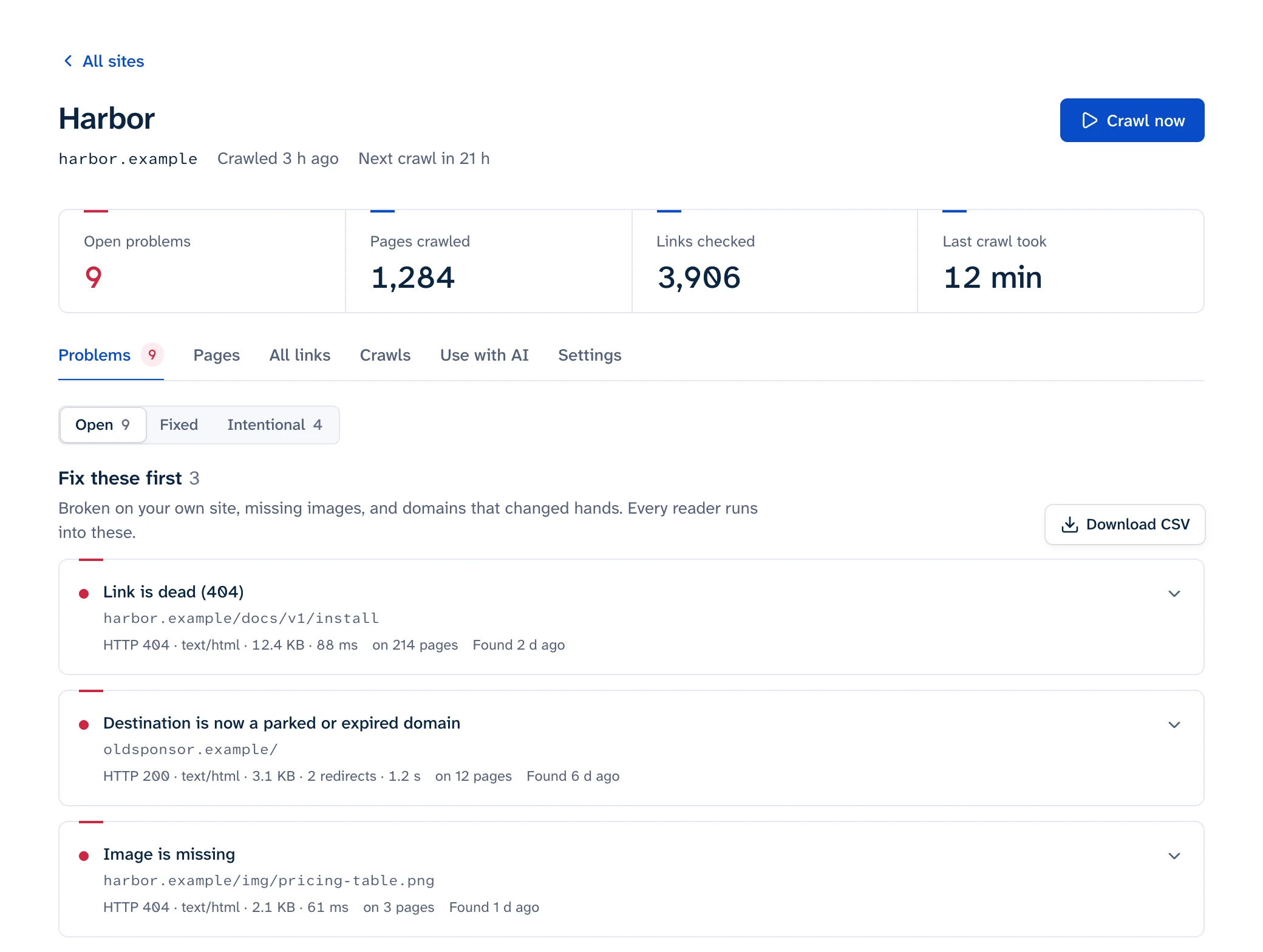
Screaming Frog's SEO Spider is a full technical SEO audit tool that also happens to be very good at finding broken links. If broken links are the only thing you open it for, and you want them checked on a schedule without a desktop app running somewhere, a hosted link monitor is the simpler Screaming Frog alternative. If you need JavaScript rendering, a full audit of titles, directives and structured data, or custom extraction, keep Screaming Frog. The step-by-step for finding broken links in Screaming Frog is below too, in case you stay.
What Screaming Frog is and what it costs
The SEO Spider is a desktop app for Windows, macOS and Linux. As of October 2026, from its pricing page and FAQ:
- The free version crawls up to 500 URLs per crawl, with no sign-up. Its configuration is locked and crawls can't be saved.
- A licence costs £199, €245 or $279 per user per year and removes the 500 URL limit. Two people need two licences; there's a discount from 5 licences up. When a licence lapses, the app drops back to the free version.
- Scheduling, crawl configuration, JavaScript rendering, crawl comparison, custom extraction, forms-based login and the Google Analytics and Search Console integrations are all licence-only.
You can also run it on a server: the FAQ says "Every version of the SEO Spider is a server version" and that you can run it "remotely on a dedicated server or in the cloud".
How to find broken links in Screaming Frog
These steps follow Screaming Frog's own broken link tutorial, which lists SEO Spider 24.3 as current.
- Open the SEO Spider, type your site into the "Enter URL to spider" box and click Start.
- Open the Response Codes tab and pick the "Client Error (4xx)" filter, or click "Client Error (4xx)" under Response Codes in the right-hand overview pane. It fills in while the crawl runs.
- Click a broken URL in the top pane, then the Inlinks tab at the bottom. "From" is the page that holds the link and "To" is the broken URL, with the anchor text and alt text alongside.
- To get every broken link with its source page in a spreadsheet, use Bulk Export > Response Codes > Client Error (4xx) Inlinks. In current versions this sits under an "Internal & External" submenu, going by the command-line docs.
- If the "From" page is itself a redirect, open Reports > Redirects > All Redirects and filter the "final status code" column to 404. The "Source" column there is the original page.
- Check the "Server Error (5xx)" and "No Response" filters in the same tab too. No Response covers timeouts, refused connections and malformed URLs.
- For broken #jump links, turn on Configuration > Spider > Advanced > Crawl Fragment Identifiers, crawl again, and use the URL tab's "Broken Bookmark" filter. This needs a licence, since the free version can't change configuration.
Three things in the defaults catch people out:
- It doesn't follow links marked
nofollow,sponsoredorugcunless you enable Configuration > Spider > Crawl > Follow Internal/External "Nofollow" (configuration guide). Affiliate and sponsored links often carry those attributes, and without a licence you can't switch it on. - The Client Error (4xx) filter mixes 403 and 429 in with 404 and 410 (tabs guide), and the FAQ says Cloudflare blocks "will appear as a 403 'forbidden' error response". Open 403s and 429s in a browser before you remove anything, or right-click the URL and choose Re-Spider. The 403 and 429 guide shows how to spot a bot wall.
- The Issues tab rates internal broken links as high priority and broken external links as a low priority warning. That's a reasonable SEO ranking, but readers still land on those outbound 404s, so work through the warnings too (checking external links).
Running Screaming Frog on a schedule
With a licence, scheduling lives under File > Scheduling. You click Add, set a date and interval, pick the crawl settings, and choose exports to a folder, Google Drive or Google Sheets (exports need "Headless Mode" turned on in the Spider tab). The Notifications tab can email you when a crawl completes, but the user guide notes "this does not currently send exports as well." Each scheduled crawl starts a new instance of the app on that machine, so the machine has to be on at the time.
On a Linux server you can drive it from cron instead. Screaming Frog's docs suggest opening the app once first, where you can, to accept the licence agreement and enter your key. This command uses only flags from their docs:
screamingfrogseospider --crawl https://www.example.com --headless --save-crawl \
  --output-folder /srv/frog/reports \
  --bulk-export "Response Codes:Internal & External:Client Error (4xx) Inlinks"
To see what changed between two runs, switch to Mode > Compare and pick two saved crawls; it shows URLs as added, new, removed or missing. That's a workable self-hosted monitor, but you still read a CSV or a comparison yourself, and nobody is told when a link breaks unless you build that part.
What changes with a hosted monitor
A hosted crawler such as Linkbruno does the same job from outside, with nothing installed:
- Nothing to keep switched on. It crawls on its own schedule, weekly on the free plan and daily on paid plans.
- You get alerts instead of files. Alerts go out by email or Slack when something changes, without daily repeats.
- Bot walls get their own label. LinkedIn's 999, Cloudflare and other challenge pages and 429 rate limits show as "blocked, couldn't check", never as broken, and never alert. In the SEO Spider, a Cloudflare 403 or a 429 sits in the 4xx filter next to real 404s.
- One link at a time. "Check again" re-reads only the pages that carry one link, so you can confirm a fix without a full crawl. (Screaming Frog's Re-Spider re-requests one URL, which covers part of this.)
- Context for each problem. Repeats fold into one row, and each problem shows every page carrying the link, whether it's in the navigation, footer or main text, the sentence around it, and the Wayback Machine's last copy for dead outbound links.
- You see what wasn't checked. A Pages tab lists every page read and every page it couldn't reach.
The limits: it reads HTML as served and doesn't run JavaScript, it doesn't audit titles, meta tags or structured data, and your crawl data lives on someone else's servers. You can see what it finds on your own site with the free 25-page scan.
Where Screaming Frog is the better pick
- Your site builds its links in the browser. A React or Vue app whose links only exist after JavaScript runs needs a renderer, and the SEO Spider has one (licence only).
- You want a full technical audit: page titles, meta descriptions, directives, hreflang, duplicates, structured data, accessibility, PageSpeed data. Broken links are one report among many.
- You need custom extraction or a search of page source for a specific string across the site.
- You need to crawl behind a login form, or keep all crawl data on your own machine.
- You crawl at serious scale. Its FAQ recommends an SSD and 16GB of RAM to crawl millions of URLs.
- You do one-off jobs, like checking a migration's redirect map by pasting old URLs into Mode > List.
- You audit many sites now and then. Licences are priced per user, and the pricing page sets no limit on sites.
Using both
Run the SEO Spider for the deep audit each quarter and before any migration or redesign, and let a monitor watch for breaks in between, especially outbound links, which die without anyone touching your site. When the monitor flags something odd, export its CSV and paste the URLs into the SEO Spider's list mode to look closer, for example with JavaScript rendering on. If both crawl your site, allow both user agents through your firewall; ours is described on the bot page.
For the wider set of methods, from DevTools on one page to Search Console, see how to find broken links on a website.