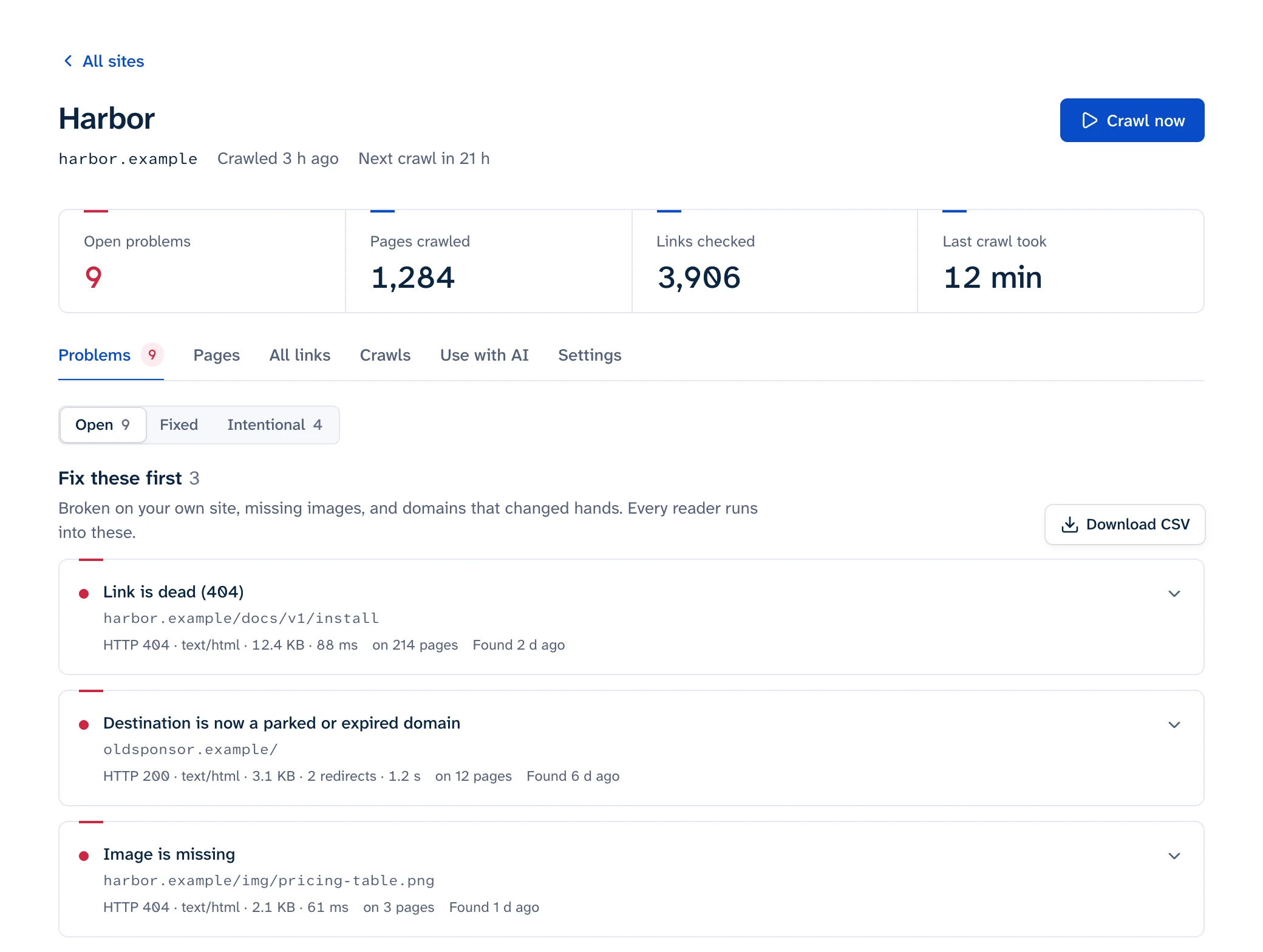
Squarespace has no built-in broken link checker and no 404 report in Analytics (its link troubleshooting guide has you revisit links by hand), so finding broken links on a Squarespace site takes two outside tools: Google Search Console for the dead URLs Google has hit, and a crawler for every link on your pages, including the ones that point to other sites. You then fix each link in the editor and add URL mappings for old addresses that people still use. Squarespace broken links usually trace back to one of a few actions: a changed URL slug, a deleted or disabled page, or a link copied from the editor's address bar.
Menu names and limits below come from Squarespace's help center as of October 2026 and apply to version 7.1 unless noted.
What breaks links on Squarespace
| What happened | Result |
|---|---|
| You changed a page's URL slug | "traffic won't automatically redirect to the new URL" (URL slugs); old links 404 |
| You changed a blog, store or calendar page's slug | Every post, product or event on it gets a new URL |
| You deleted a page or post | 404; it stays in Deleted Pages or Deleted Posts for 30 days if you want it back (deleting pages) |
| You disabled a page | Visitors get a 404 until you enable it again |
| Someone typed a URL with capital letters | Slugs are always lowercase, so the mixed-case address 404s |
| A link was copied from the editor | URLs containing /config#/ send visitors to a login screen |
| A category or tag link was typed by hand | Categories and tags are case-sensitive, so /recipe won't match "Recipe" |
| You imported posts from WordPress or Blogger | Old internal links keep the previous site's URL structure |
| You changed a page or anchor slug | Anchor links built with the old slug stop jumping to the section |
Two of these deserve a closer look. The /config#/ problem comes from copying a page address while logged in and editing; Squarespace's troubleshooting guide says these links "don't work for visitors". And the capital-letter case matters more than it sounds, because people retype URLs they see in print; Squarespace suggests a 301 from the capitalized version to the real one.
Finding broken links
Search Console
Connect Search Console from inside Squarespace: open the Analytics panel, click Search keywords, then Connect (Squarespace Help). Then, in Search Console itself, open Indexing > Pages, scroll to "Why pages aren't indexed" and click "Not found (404)". To find where Google picked up a dead URL, inspect it and expand Page indexing; "Referring page" shows "a page that Google possibly used to discover this URL" (URL Inspection help).
Squarespace's help points out two soft 404 cases worth knowing. A custom 404 page built as a normal page in Not linked can be flagged as "Soft 404", which Squarespace says you can clear by using the System Default 404 page or hiding the custom page from search engines (custom 404 page). And a real page can be flagged if its text reads like an error, with phrases such as "no longer available" or "item not available" (Google SEO emails and console errors).
Search Console only lists URLs Googlebot tried and never your outbound links. The Search Console guide covers the report in depth.
Why the activity log won't help
Analytics > Engagement > Activity log looks promising, but it lists individual visits from the past seven days, identified by page title (activity log). You can filter it by IP address, page visited or referrer, not by status, and it can't be exported.
A crawl of the live site
A crawler reads your published pages and checks every link on them: navigation, header, footer, buttons, text links, image links and links to other sites. Crawl your custom domain rather than the built-in example.squarespace.com address, and do it from a logged-out tool so it sees what visitors see. The free scan checks up to 25 pages without an account.
Because Squarespace has no site-wide find and replace for links, the useful part of a crawl report is the location of each link. Linkbruno lists every page that carries a broken link and where on the page it sits (navigation, header, footer, sidebar or main text). A dead link that shows up on all 60 pages in the footer is a single edit, because the footer "shows the same content across all pages on your site" (footer help). A link in the main text of 12 blog posts is 12 edits, and that's worth knowing before you start.
Fixing the links themselves
Squarespace recommends "manually updating all outdated links" and using redirects as a backstop (link troubleshooting). For a link to a page on your own site, open the link editor, click the URL tab and search for the page by title or slug instead of typing the address, so a typo can't creep in. Blog posts and other collection items are the exception: those need the full URL. For a link to another site, test the address in a private window first, then paste it.
Where to edit, by where the crawl says the link sits:
| Location | Where to edit it |
|---|---|
| Navigation | Pages panel: open the link item and change the URL in its link editor |
| Footer | Edit on any page, hover over the footer, Edit footer |
| Text, button or image link in a page | Edit the page, click the block, open its link editor |
| Blog post | Pages panel, the blog page, then the post |
One habit saves trouble later: when you rename a page, update every link to it the same day. Squarespace's slug guide says so directly: "If you linked to the page using page links, update those links too."
Redirecting old URLs with URL mappings
For URLs you've changed or removed, add a redirect so old links, bookmarks and search results still land somewhere useful. In Squarespace, open Settings, then Developer Tools, then URL mappings (URL mappings). Type one redirect per line and click Save.
Each line is the old path, an arrow made of a dash and a greater-than sign, the new path, and the redirect type:
/about -> /team 301
/blog/[name] -> /posts/[name] 301
/store/p/[name] -> /buy/p/[name] 301
/fundraiser -> https://fundraiser.com/very-special-fundraiser 301
/seasonal-offerings -> /main-store-page 302
The second and third lines use [name], which stands for each item's slug, so one line redirects every post or product after a collection page's slug changes. On 7.1, product URLs include /p/ before the product slug.
The rules that trip people up:
- Redirects only fire when nothing lives at the old URL any more: the page was deleted, disabled or given a new slug. A mapping from a page that still loads does nothing.
- Lines run top to bottom, so put specific redirects above broad ones like the
[name]rules. - Use relative paths without your domain. External targets must start with
https://. ?,&and#mostly aren't allowed, which can stop you redirecting to an anchor link. RSS feed URLs are the exception.- Image and file URLs can't be redirected, and neither can
/. - Match your URLs' capitalization, which on Squarespace means lowercase.
- The field holds up to 400 KB, "usually around 2500 redirect lines", and accepts nothing but valid redirects, so no comments.
If a line is malformed you get one of three errors: "Invalid mapping: Not enough parts" (missing arrow or type), "Invalid mapping: Too many parts", or "Invalid mapping: Expected to find 301 or 302".
Test carefully. Squarespace sends a visitor to a 404 if they trigger the same redirect more than once within two minutes, as protection against loops. Click a new mapping once in a private window, and if you need to test again, wait two minutes, or you'll think a working redirect is broken. On 7.0 sites with Ajax loading turned on, redirect links can also 404; the help article says to turn Ajax loading off.
Squarespace's own example redirects a deleted page to the home page with /history -> / 301. That's fine for one page with no successor. Don't do it for dozens: Google warns that redirecting many old URLs to the home page "might be treated as a soft 404 error" (Google). Send each to its nearest equivalent, or let it 404.
Anchor links on 7.1
Version 7.1 has built-in anchor links on page sections (anchor links):
- Open the Pages panel, click the page, then Edit.
- Hover over the section and click Edit Section.
- Under Anchor Link, type a slug. The
#is fixed in place and spaces turn into dashes. - Click the Copy Link icon, then paste that URL into a link elsewhere. It looks like
/pageslug#anchorlinkslug.
Anchor links work on auto layout, block, course, gallery and videos sections. Blog, events, portfolio and store sections can't have one; Squarespace's workaround is a blank section directly above, with the anchor on that, and Fill Screen turned off so it doesn't leave a gap.
Why they break:
- The page slug changed. The link still points at
/old-slug#section. Update the link itself; Squarespace's help says anchor links "won't work correctly with outdated URLs". - The anchor slug changed. The page loads but stays at the top, with no error anywhere.
- Two sections on one page use the same slug. Squarespace says that "won't work correctly".
A jump link that lands at the top of the page returns 200, so it looks fine to any checker that only reads status codes. A crawler has to compare the #fragment with the ids on the target page to catch it; see broken anchor links. On 7.0, anchors are made with code blocks or, on some templates, index page anchor links.
For the same process on any platform, see how to find broken links on a website, and for choosing between a redirect and removing a link, how to fix broken links.